
Cohearo / MCP
Connect Cohearo to ChatGPT and Codex
Set up Cohearo in ChatGPT, then use the same plugin in Codex to work with your recordings.
TESTED ON CHATGPT WEB AND CODEX · PRO ACCOUNT · SEPTEMBER 9, 2026
What you need
- An active Cohearo account and a completed recording visible in your dashboard.
- A ChatGPT Plus, Pro, Business, Enterprise, or Edu account. OpenAI lists these plans for Developer mode; Free and Go are not listed.
- Permission to use Developer mode and custom plugins in your workspace, if your account is managed.
No OpenAI API key or Cohearo API key is needed for these steps. Plan availability can change; see OpenAI’s Developer mode requirements.
1. Enable Developer mode
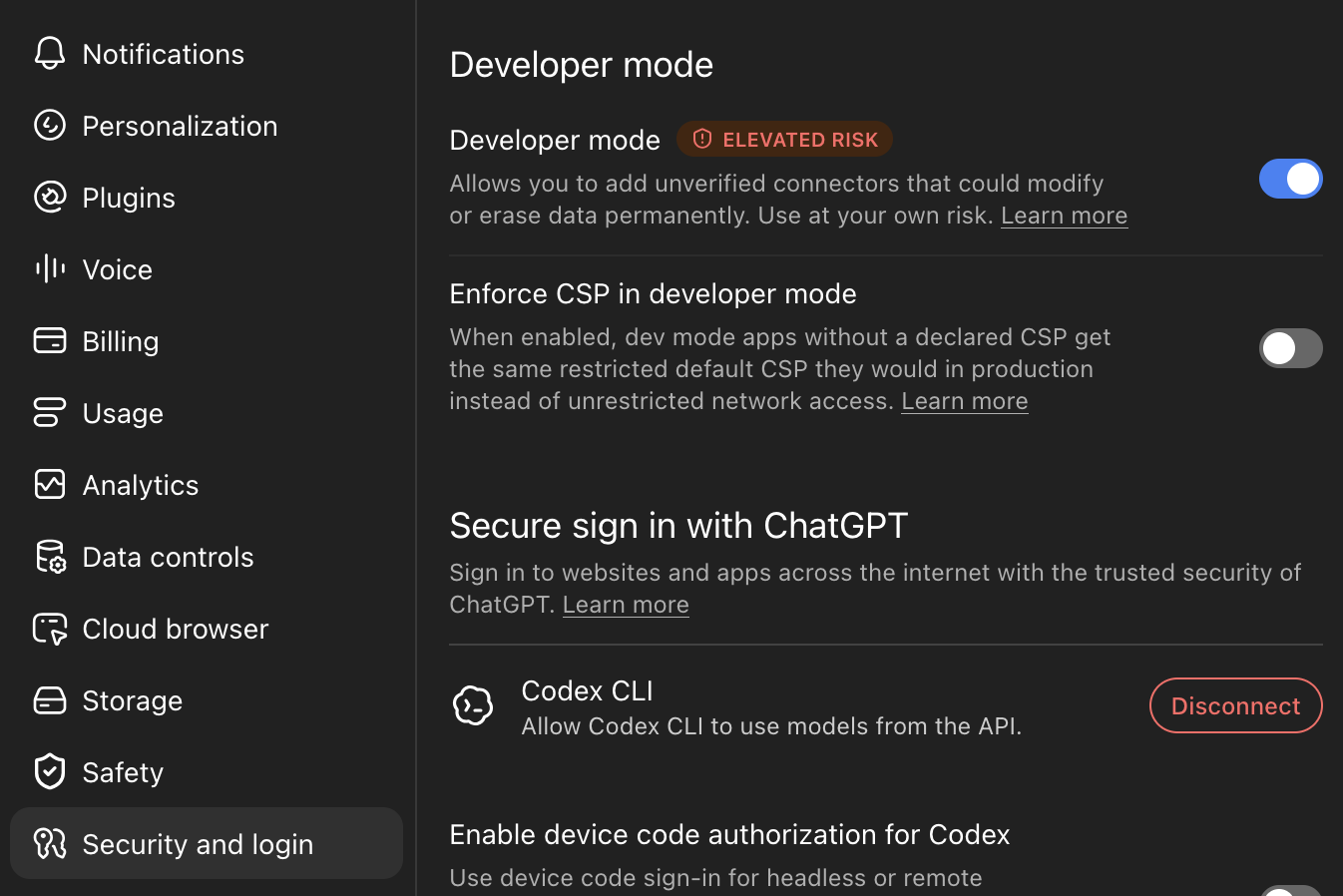
Open your profile menu in the bottom-left corner of ChatGPT and select Settings. Open Security and login, then enable Developer mode.
2. Add the Cohearo plugin
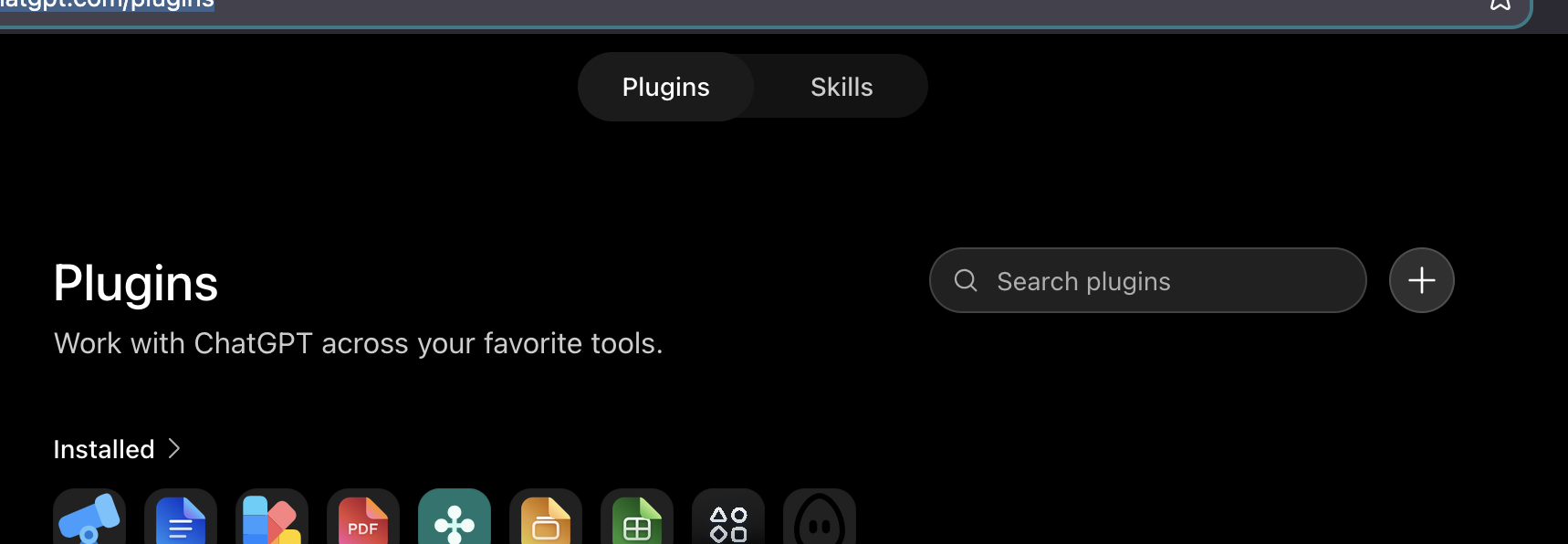
Open ChatGPT Plugins and select the + button beside the search field.
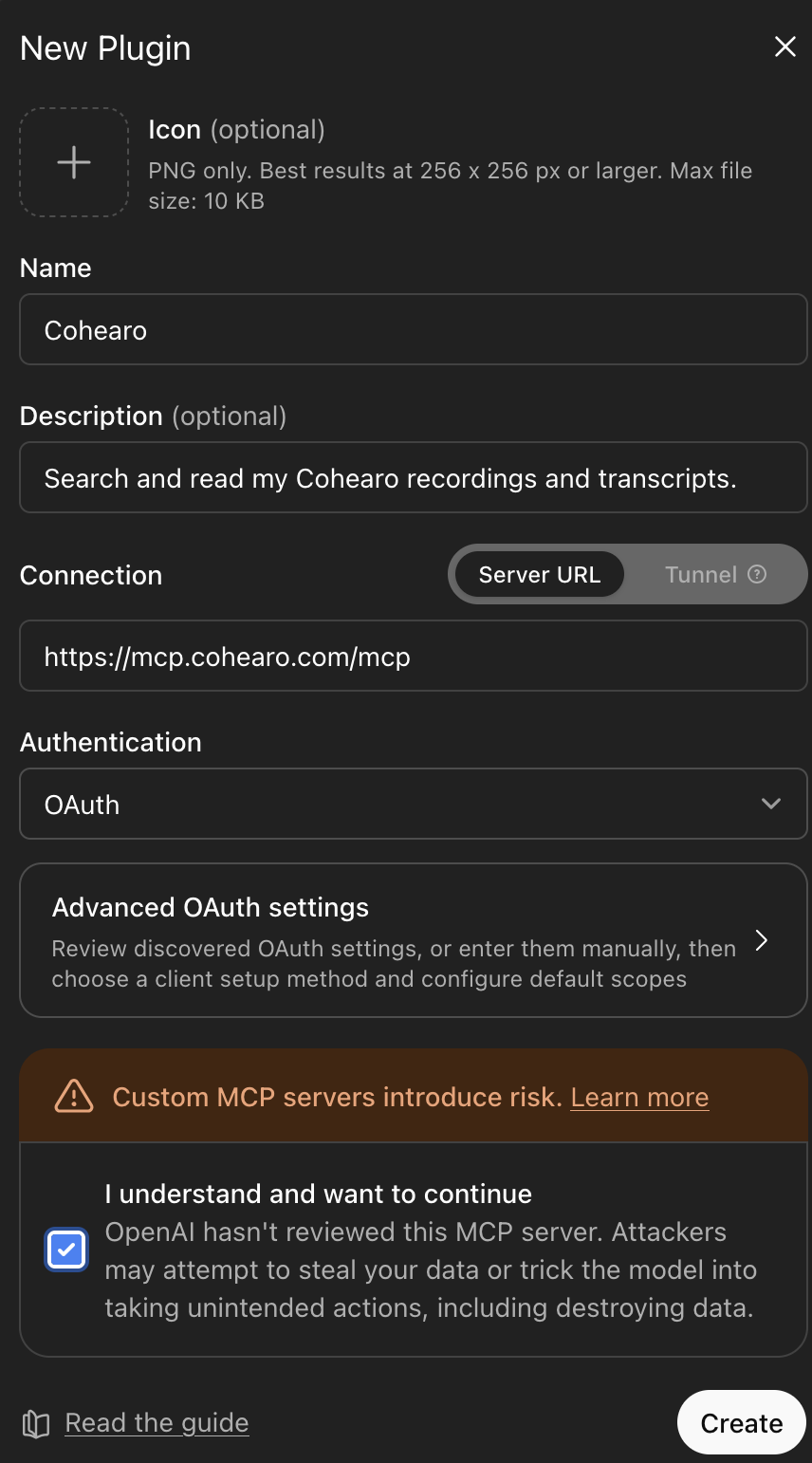
Fill in the form:
- Name
- Cohearo
- Description
- Search and read my Cohearo recordings and transcripts.
- Connection
- Server URL
- Server URL
https://mcp.cohearo.com/mcp- Authentication
- OAuth
The icon and description are optional. Leave Advanced OAuth settings at their defaults. That is the configuration used in this walkthrough.
Read the custom-server notice, select I understand and want to continue, then click Create.
3. Sign in and authorize Cohearo
On Add Cohearo to ChatGPT, click Sign in with Cohearo.
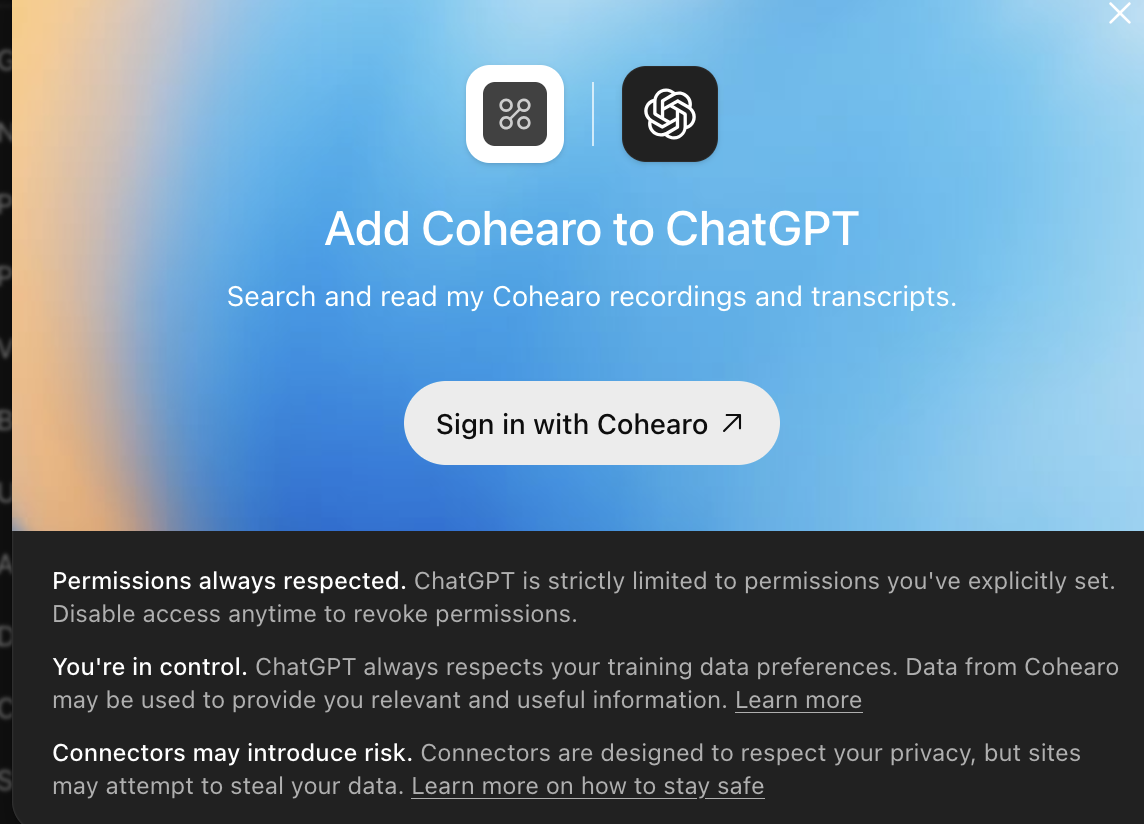
The browser opens the Cohearo dashboard. Sign in if prompted, using the account containing your recordings. On Authorize ChatGPT, review the requested read and modification permissions and click Allow.
Back in ChatGPT, look for Cohearo is installed. The consent page is opened automatically; you do not need to copy its temporary URL.
4. Try it in a conversation
Start a new chat and ask ChatGPT to use Cohearo:
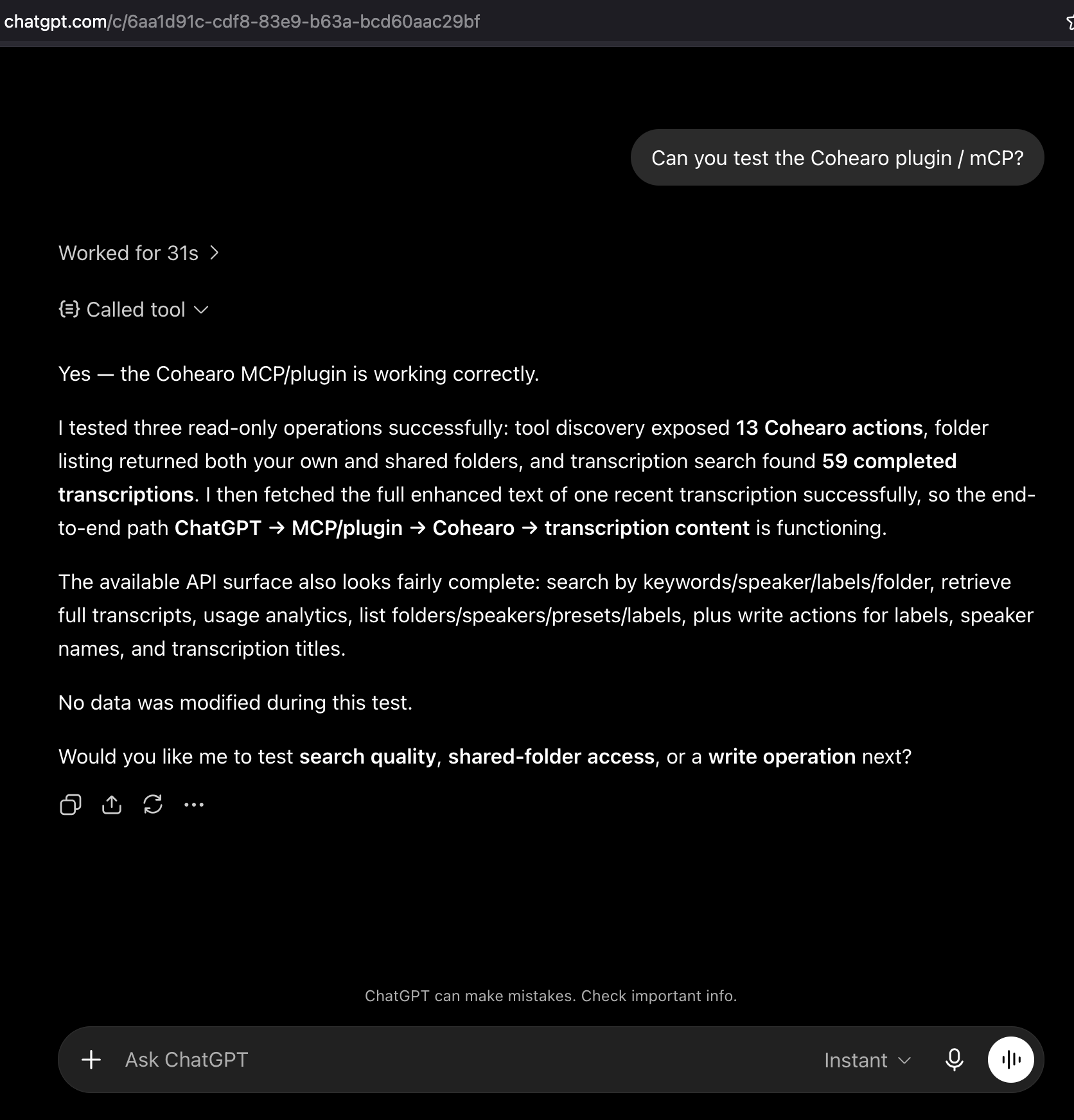
Use Cohearo to list my folders, find a recent completed transcription, and read its text. Do not modify anything.
Then try a topic you know is in one of your recordings:
Find my meeting about the product launch and summarize what was discussed. Include the source recording.
Check the tool activity and compare the result with your dashboard. For long transcripts, ask ChatGPT to read all relevant pages before summarizing.
Use the same plugin in Codex
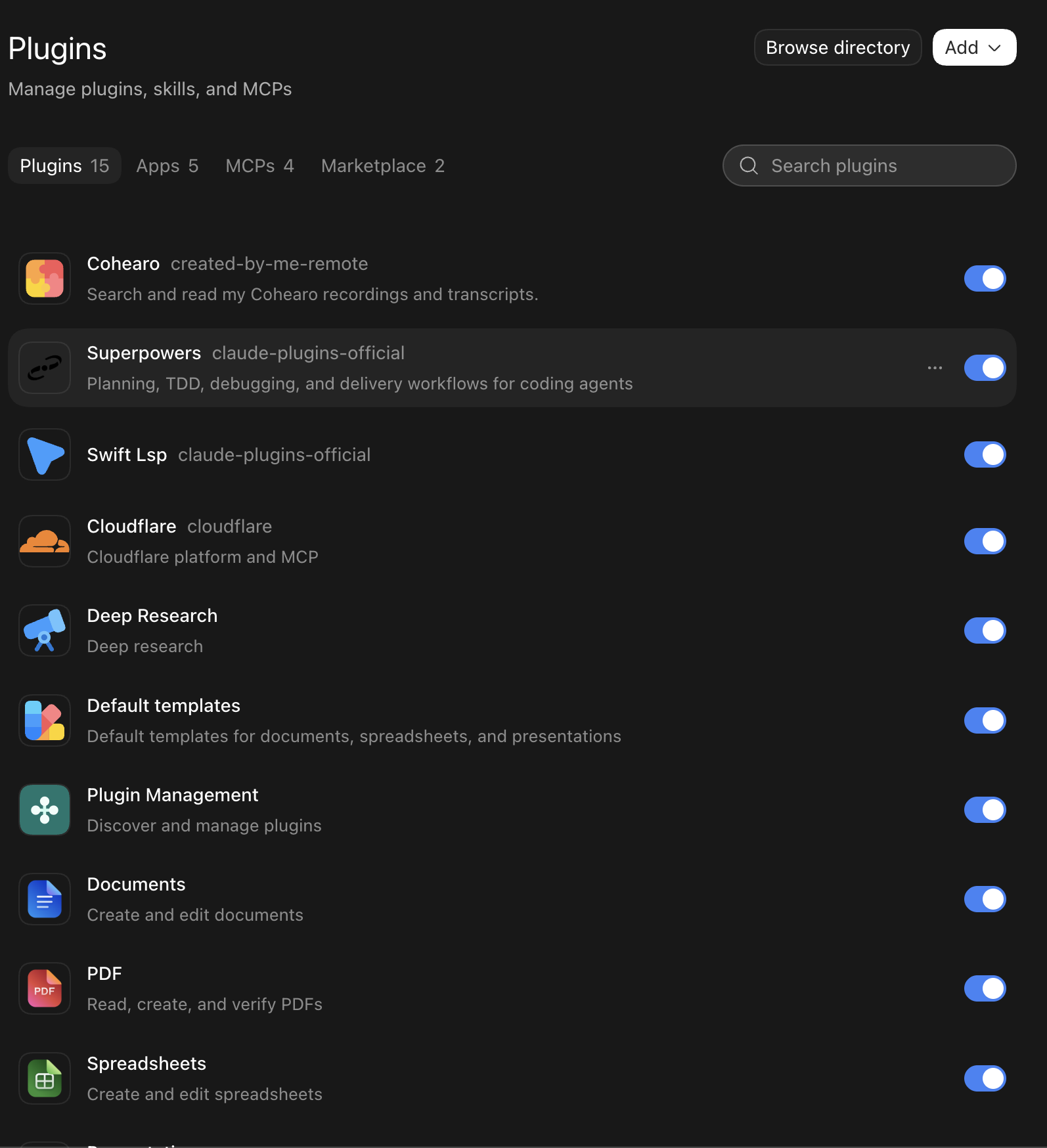
After completing the ChatGPT setup, open Codex with the same OpenAI account. In Plugins, find Cohearo under created-by-me-remote and make sure it is enabled.
Start a new task, select or mention the Cohearo plugin, and ask:
Use Cohearo to list my folders. Do not modify anything.
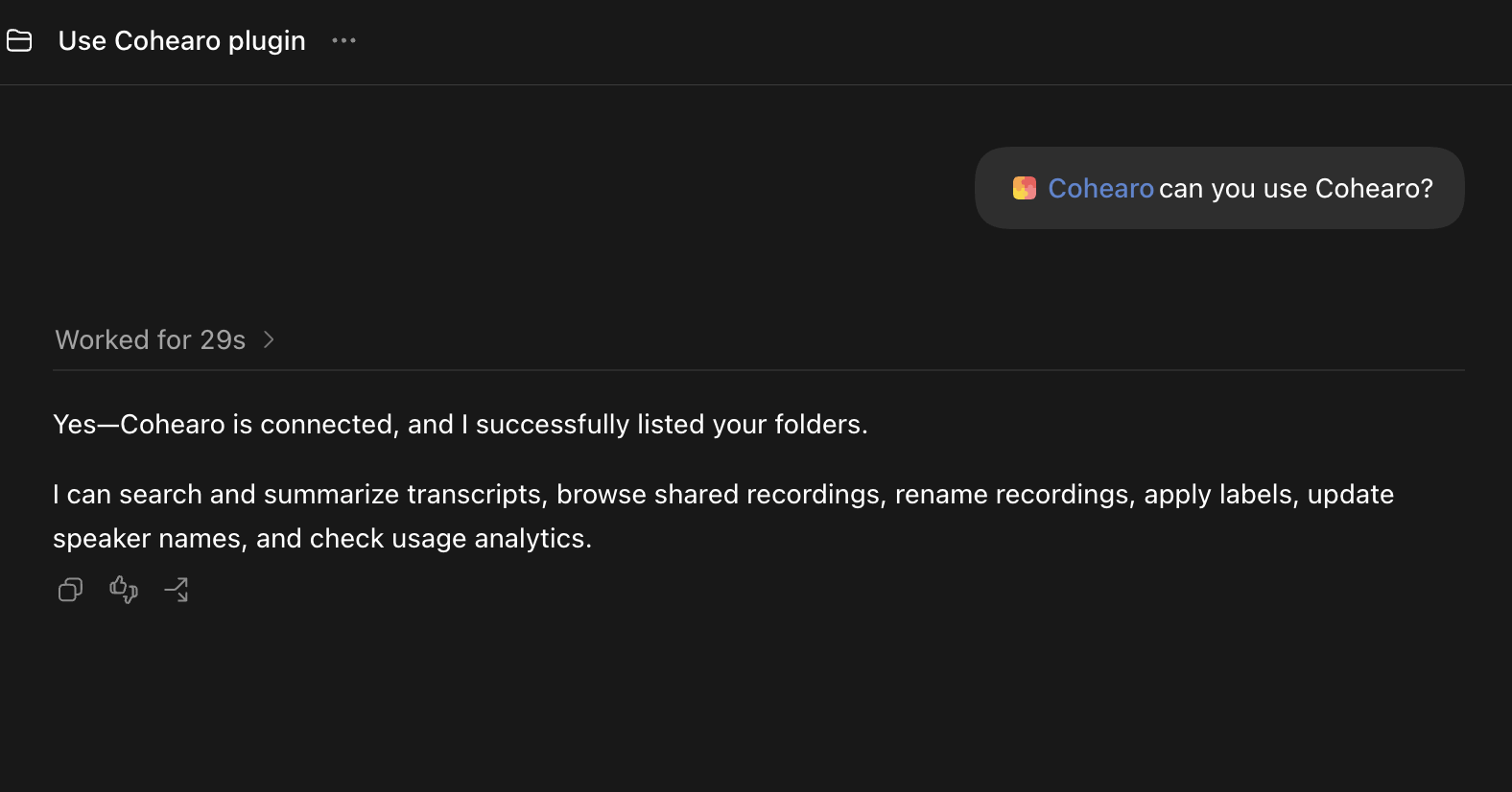
Our already-open task did not have Cohearo’s tools available, even after mentioning the plugin. A new task succeeded. You do not need to add a separate MCP server for this path.
This walkthrough was tested with Pro. Codex itself is available on Free and paid plans, but creating the custom plugin through ChatGPT requires the Developer mode eligibility listed above.
If something looks wrong
Settings says “No app actions available yet”
This appeared during our installation, but the subsequent conversation reported successful tool discovery and calls. Try the prompt above. If tools remain unavailable, use Refresh in the plugin settings and start a new conversation.
Developer mode is missing
Check your plan and workspace policy. Buying API credits does not enable this ChatGPT setting.
ChatGPT does not use Cohearo
Enable Cohearo through the conversation’s tools menu, then explicitly ask it to use Cohearo. Expand the tool activity to check what it called.
Codex’s direct MCP Authenticate option does not work
We encountered this when adding the server manually through Plugins → Add → Add MCP server. Use the web-created plugin and a new task as described above. The separate direct OAuth connection has not been verified; its failure does not establish that an API key is required.
The connection has no recordings
Check that you signed into the same Cohearo account as your dashboard. Search for a known topic without date filters first.
Access and disconnecting
Cohearo’s connection can read your recordings and recordings available through shared folders. It also includes editing tools for your own recordings, such as changing titles and labels. Review the permissions when you connect; OAuth grants more than read-only access.
To disconnect, open the Cohearo dashboard → Settings → Connections and select Disconnect. Also remove or disable Cohearo in your AI client. Disconnecting prevents token renewal; an existing access token can remain valid for up to one hour.
Setup references: OpenAI’s connection guide and Developer mode documentation. Screenshots show the interface used in our September 2026 test.